Capture
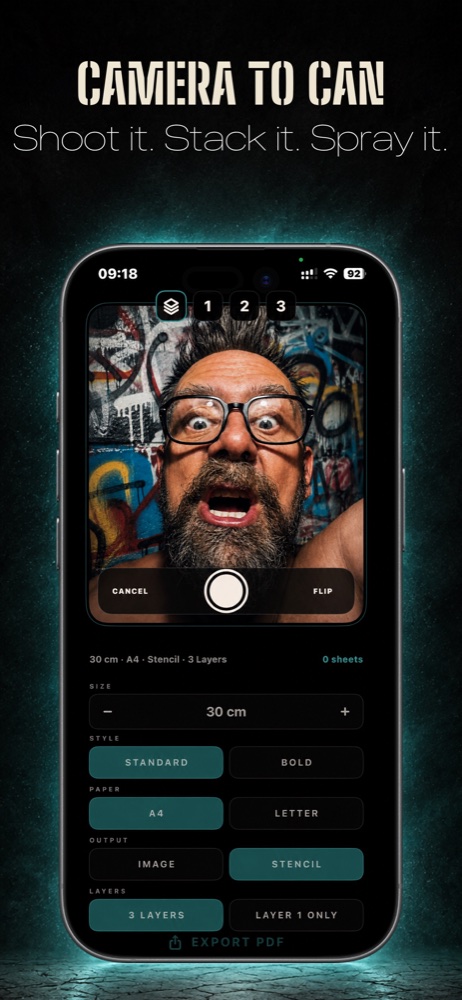
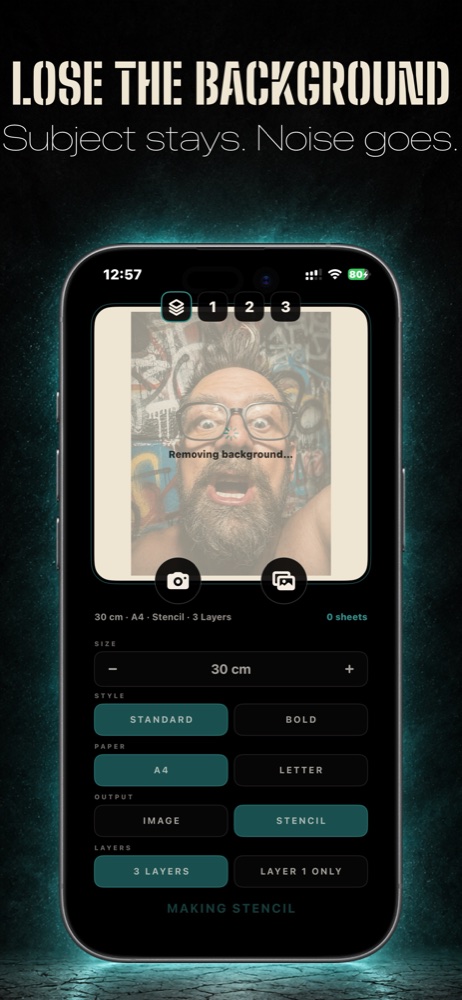
Take a photograph in StencilStack or choose one from Photos. The background is isolated on your device.

Stencil making for iPhone
Capture a photograph, create layered artwork and export tiled PDFs ready to cut, stack and spray.
Inside StencilStack
Swipe, drag or use the arrow keys to follow the workflow.
How it works
Three direct steps from an ordinary photograph to a physical stencil.
Take a photograph in StencilStack or choose one from Photos. The background is isolated on your device.
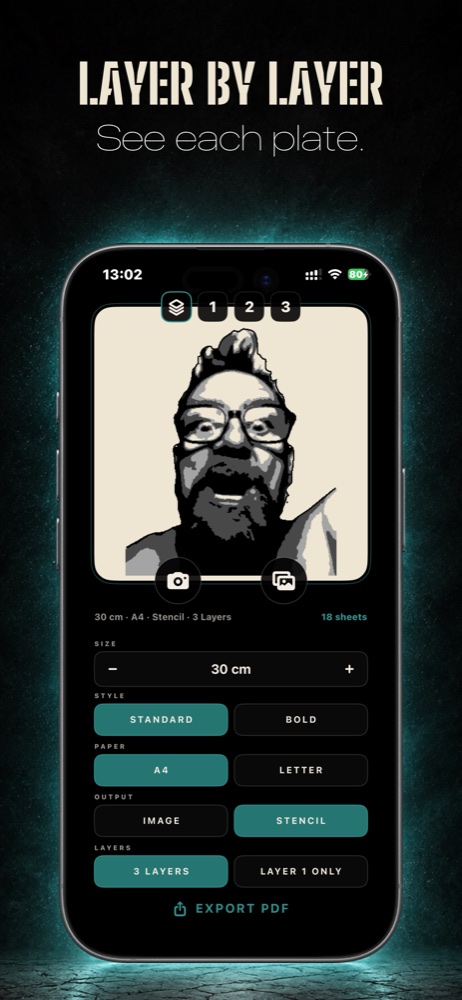
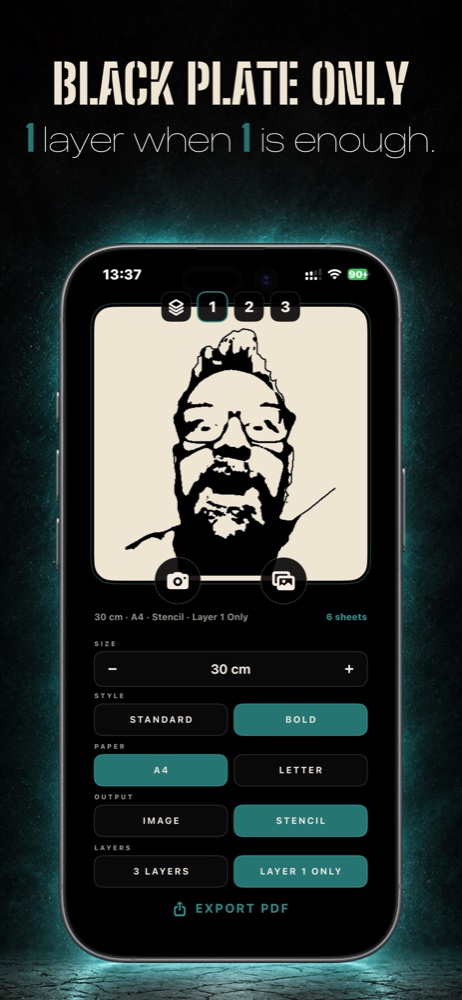
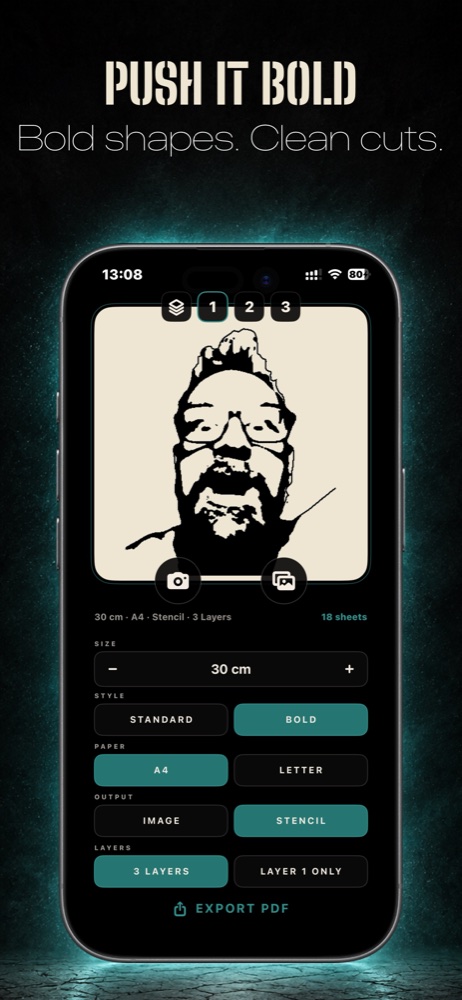
Preview three coordinated plates or choose the black plate alone. Switch between Standard and Bold styles.
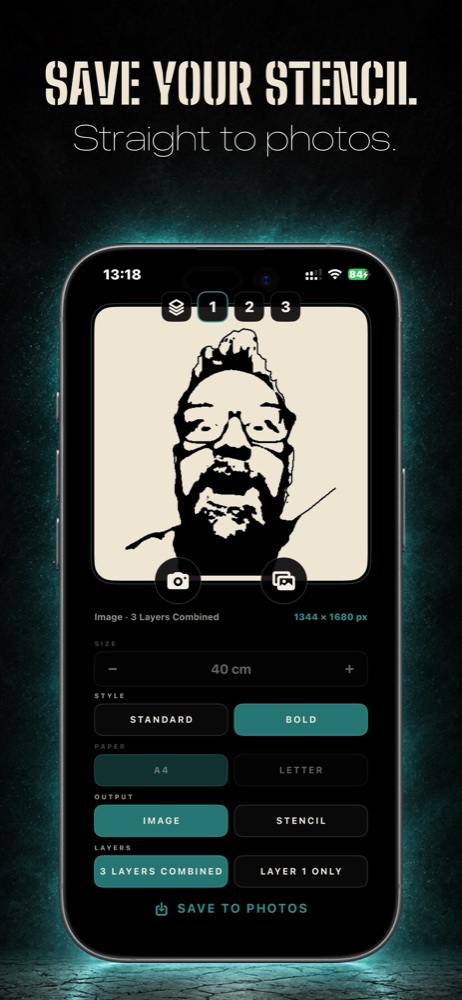
Save a finished image or export a tiled PDF with the guides needed to assemble a full-size stencil.
Built for physical work
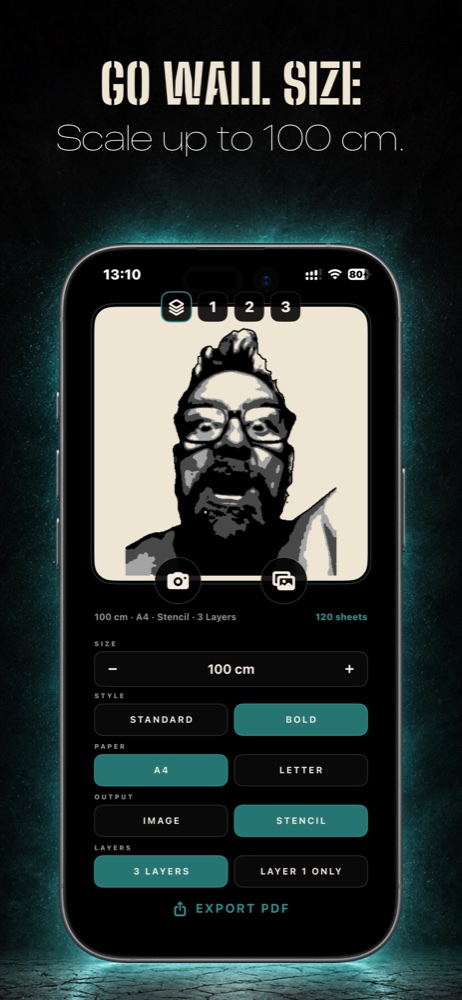
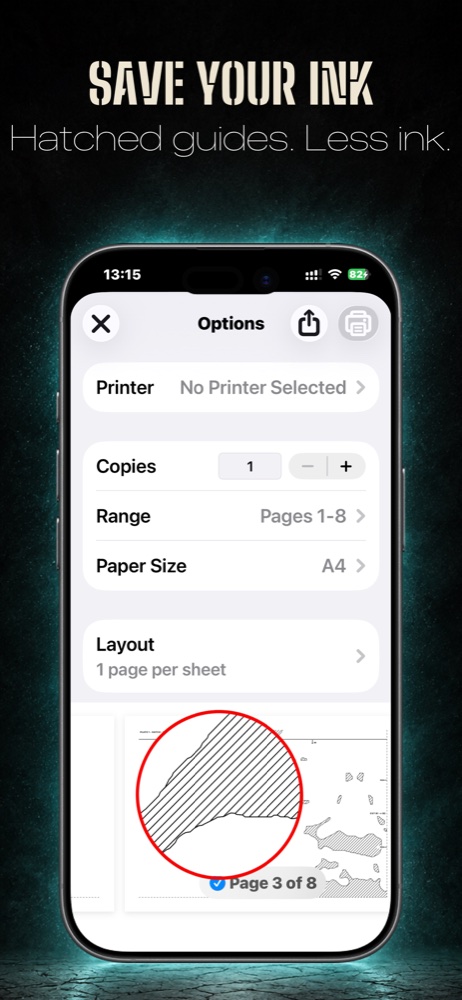
Set artwork width from 10 to 100 cm in precise 5 cm steps. Choose A4 or US Letter and StencilStack automatically lays out the tiled PDF.
One straightforward price
StencilStack is a paid download with no subscription and no in-app purchases.
Privacy by design
StencilStack processes photographs on your device. It has no accounts, advertising, analytics or behavioural tracking.
Read the full privacy policy →Support
Everything to get from photograph to assembled stencil.
Use a clear, well-lit subject with strong separation from the background. Simple shapes and visible facial or object detail produce the clearest plates.
3 Layers exports coordinated light, shadow and black plates. Layer 1 Only exports the black plate as a simpler single-layer stencil.
Image saves the finished artwork to Photos. Stencil creates a tiled PDF at the selected physical width for printing and assembly.
The count depends on artwork width, paper size, orientation and whether one plate or all three plates are exported.
Print at 100% or Actual Size. Do not use Fit to Page, Scale to Fit or another automatic resizing option.
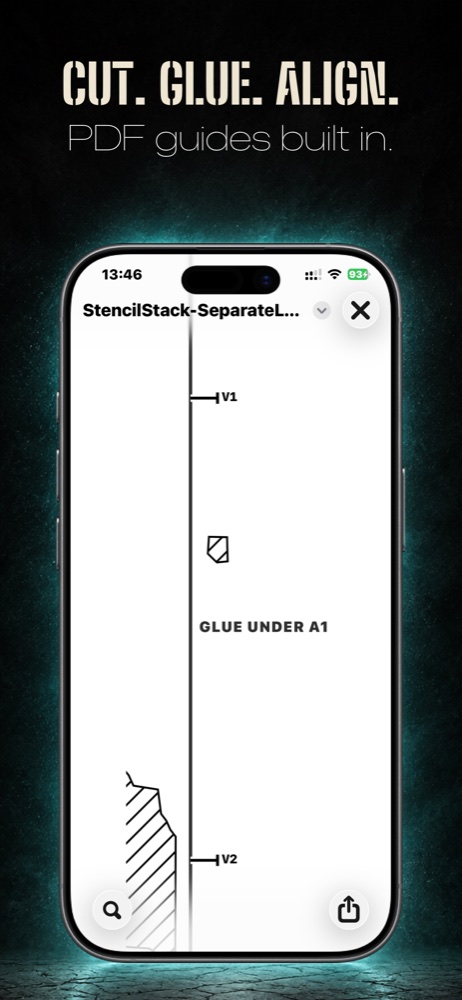
Follow the CUT and GLUE labels, preserve the printed overlap, and use the registration marks to align matching layers.
Open the iPhone Settings app, select StencilStack, then adjust Camera or Photos access.